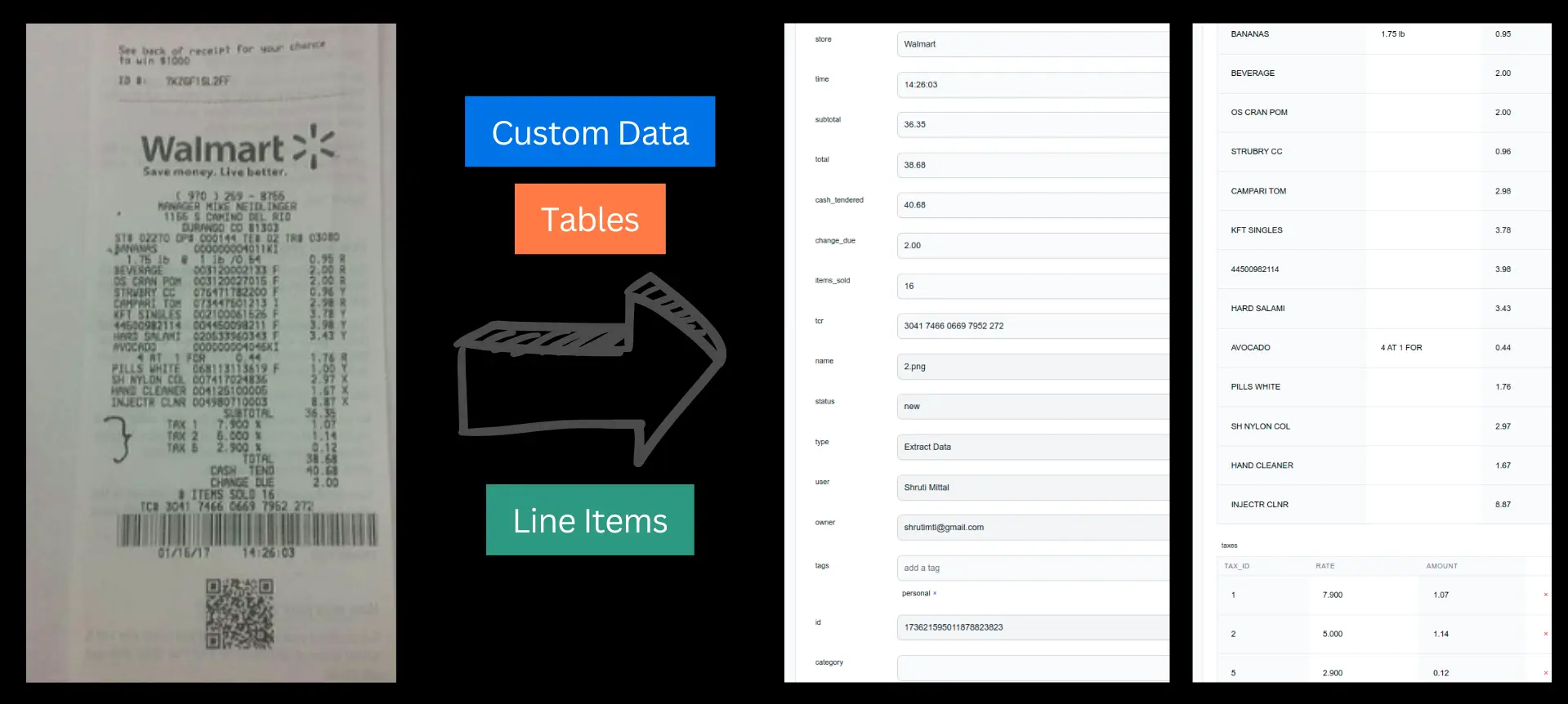
Extract Text from Image
Unlock the power of text hidden within your images. Learn how Optical Character Recognition (OCR) works, why it's essential, and how to choose the best tools.
Introduction: The Problem of Trapped Text
Have you ever received a scanned document as a PDF image, a photo of a presentation slide, or a screenshot containing crucial information, only to realize you can't copy, search, or edit the text? This "trapped text" is a common frustration in our digital world. Manually retyping everything is tedious, time-consuming, and prone to errors.
Fortunately, technology offers a powerful solution: the ability to extract text from image files. This process, primarily driven by Optical Character Recognition (OCR) technology, transforms static image-based text into editable, searchable, and usable digital text data. Whether you're dealing with scanned receipts, historical documents, book pages, or simple screenshots, understanding how to extract text from images can significantly boost your productivity and accessibility.
This comprehensive guide will delve deep into the world of image text extraction. We'll explore what it is, how the underlying OCR technology works, why it's incredibly beneficial, who uses it, and how you can leverage it effectively.
What Exactly is Extracting Text from Images?
Extracting text from an image is the process of converting text characters visually present within an image file (like a JPG, PNG, GIF, TIFF, or image-based PDF) into machine-encoded text. This means transforming pixels that form letters and numbers into actual character data that a computer can understand, process, and manipulate (like text in a Word document or a simple text file).
The core technology enabling this is Optical Character Recognition (OCR). OCR systems analyze the shapes and patterns of characters within an image, compare them against known character sets and language databases, and then output the recognized text.
Think of it like digital transcription for images. Instead of listening to audio and typing, the software "reads" the image and "types" out the text it sees. This is fundamentally different from simply viewing an image; it involves interpretation and conversion of visual data into structured text data.
Related Terms You Might Encounter:
You might also hear terms like Image to Text Conversion, Picture to Text, OCR Scanner, or Image Text Extractor used to describe this process or the tools involved.
How Does OCR Technology Actually Work? (The Magic Explained)
While it might seem like magic, OCR involves several sophisticated steps to achieve accurate text extraction from an image. The process generally breaks down as follows:
1. Image Acquisition & Pre-processing:
First, the image is acquired (scanned, photographed, uploaded). Then, pre-processing cleans it up for better analysis. Key steps often include:
Binarization
Converts the image to black and white to clearly separate text from background.
Deskewing
Straightens tilted or rotated images for easier line detection.
Noise Reduction
Removes spots, speckles, or background interference.
Layout Analysis
Identifies text blocks, columns, images, and tables within the page.
Line/Word Detection
Isolates individual lines and words for character recognition.
2. Character Recognition:
This is the core step where the system identifies characters using methods like:
- Pattern Matching: Comparing character shapes to a library of templates.
- Feature Extraction: Identifying key features (lines, curves, loops) and matching them. Modern OCR relies heavily on AI/ML for this.
3. Post-processing:
The raw output is refined using contextual information:
Language Modeling
Uses dictionaries and grammar rules to correct likely errors (e.g., "hte" to "the").
Contextual Analysis
Improves recognition based on surrounding text or expected data types.
Formatting
Attempts to reconstruct original layout (paragraphs, columns, etc.).
4. Output Generation:
Finally, the corrected text is presented in a usable format (.txt, .docx, searchable PDF).
Note: Accuracy heavily depends on image quality and the OCR engine's sophistication.
Why Should You Extract Text from Images? (The Benefits)
The ability to extract text from images opens up a world of possibilities and offers numerous advantages:
Searchability
Instantly find information within scanned documents or image text.
Editability
Correct, update, or repurpose text extracted from any image.
Accessibility
Makes image text readable by screen readers for visually impaired users.
Data Entry Automation
Extract data from invoices, forms, receipts automatically, saving time.
Translation
Easily copy text from images to use with translation services.
Organization
Digitize paper documents, save space, and make files easy to manage.
Who Can Benefit from Image Text Extraction? (Use Cases)
The applications of extracting text from images are vast and span across various fields and user groups:
Students
Digitize notes, extract quotes from textbooks, make research searchable.
Businesses
Automate invoices, digitize contracts, extract business card data.
Researchers
Digitize archives, extract data from publications, make materials searchable.
Libraries/Archivists
Create searchable digital collections of books, manuscripts, and records.
Legal Professionals
Make scanned documents and evidence searchable for eDiscovery.
Content Creators
Repurpose text from infographics, social posts, or presentations.
When and Where to Use Image Text Extraction Tools?
You'll find image text extraction useful in countless scenarios, such as dealing with scanned PDFs, photos of signs, screenshots, or digitizing paper documents. Tools are available as:
Online OCR Tools
Web-based, convenient for occasional use, require internet connection.
Desktop Software
More features, batch processing, offline use, often paid (e.g., Acrobat).
Mobile OCR Apps
Use phone camera for quick captures on the go (e.g., Google Lens).
Integrated Features
OCR built into note apps, cloud storage, etc., for automatic searchability.
OCR APIs
For developers to build text extraction into custom software.
The best platform depends on your volume, frequency, feature needs, budget, and privacy requirements.
How to Extract Text from an Image: A Generic Step-by-Step Guide
While specific steps vary, the general process is consistent:
- Choose Your OCR Tool: Select based on accuracy, language, features, cost, privacy.
- Prepare Your Image: Ensure it's clear, focused, well-lit, high-resolution, and straight.
- Upload or Input Image: Load the image into your chosen tool (web, desktop, mobile).
- Select Language (If Needed): Specify the text language if auto-detect fails.
- Start Extraction: Click "Convert," "Extract," etc. to begin OCR.
- Review and Edit Output: Crucial step! Proofread carefully against the original image and correct any errors.
- Copy, Download, or Save: Export the corrected text in your desired format.
Choosing the Right Image Text Extractor: Key Features
When selecting an OCR tool, consider these important features:
Accuracy
How well it recognizes text, especially with varied fonts or image quality.
Language Support
Ensure it supports all the languages you need to process.
Input/Output Formats
Check supported image inputs (JPG, PNG, PDF) & text outputs (TXT, DOCX).
Layout Retention
Does it preserve columns, tables, and formatting? Important for complex docs.
Batch Processing
Ability to convert multiple files at once, crucial for large volumes.
Security & Privacy
How is your data handled, especially with online tools? Check policies.
Common Challenges & Tips for Better Accuracy
Even the best OCR tools can struggle. Here’s how to improve results:
- Challenge: Low Image Quality. Tip: Use clear, high-res, evenly lit images.
- Challenge: Complex Fonts/Handwriting. Tip: Standard print works best. Use specialized tools for handwriting (expect lower accuracy).
- Challenge: Complex Layouts. Tip: Simpler layouts are easier. Manually zone text areas if possible. Prepare for post-editing.
- Challenge: Skewed/Warped Images. Tip: Straighten images using deskew features or editors.
- Challenge: Noise/Artifacts. Tip: Use noise reduction; sometimes manual cleanup is needed.
- Challenge: Unsupported Languages. Tip: Ensure your tool supports the needed language(s).
General Tip: Always proofread the output! Correction is faster than retyping or fixing data errors later.
The Future of OCR and Text Extraction
OCR technology continues to evolve, driven by AI and Machine Learning:
Improved Accuracy
AI models enhance recognition of varied fonts and lower-quality images.
Handwriting Recognition
AI drives better (though still imperfect) deciphering of handwriting styles.
Better Layout Analysis
Future tools will better replicate complex layouts (tables, charts, forms).
Contextual Understanding
AI enables smarter extraction, understanding the meaning of text (e.g., invoice totals).
Seamless Integration
Deeper embedding in OS, cloud platforms, AR, voice assistants.
Bridging the visual and digital text worlds will only become more powerful.
Frequently Asked Questions (FAQs)
Is extracting text from images 100% accurate?
No, OCR technology is not yet 100% perfect, although accuracy has significantly improved. The quality of the source image is the most critical factor. Clear, high-resolution images with standard fonts yield the best results (often exceeding 98-99% accuracy). However, low quality, complex layouts, unusual fonts, or handwriting will lead to more errors. Always proofread the extracted text.
Can OCR tools extract text from handwriting?
Some advanced OCR tools, particularly those leveraging AI, offer handwriting recognition (often called ICR - Intelligent Character Recognition). However, accuracy varies greatly depending on the clarity and consistency of the handwriting. It's generally less accurate than recognizing printed text.
What file formats can I extract text from?
Most OCR tools support common image formats like JPG (JPEG), PNG, GIF, BMP, and TIFF. Many also handle PDF files, especially image-based PDFs (scans). Support for other formats can vary, so check the specific tool's documentation.
Are online image to text converters safe to use?
Safety depends on the provider. Reputable online OCR services often have privacy policies explaining how they handle your data (e.g., deleting files after processing). However, uploading sensitive documents to free, unknown online tools carries inherent risks. For confidential information, consider using trusted desktop software or apps with clear security practices, or services designed for enterprise use.
Can I extract text from images on my mobile phone?
Yes, absolutely. Many mobile apps are available for both iOS and Android that allow you to take a photo and instantly extract the text. Examples include Google Lens, Microsoft Lens, Adobe Scan, and various dedicated OCR scanner apps. These are very convenient for on-the-go text extraction.
Do I need special software to extract text from images?
Not necessarily. You can use free online tools, built-in features on your phone (like Google Lens or iOS Live Text), or features within software you might already have (like some PDF readers or note-taking apps). Dedicated desktop software offers more power and features but isn't always required for basic tasks.
Conclusion: Embracing the Power of Image Text
Extracting text from images using OCR technology is no longer a niche capability but an essential tool for productivity, accessibility, and data management in the modern digital landscape. By converting static visual information into dynamic, usable text, we unlock searchability, editability, and analytical potential previously hidden within pixels.
Whether you're a student digitizing notes, a business automating invoices, or simply someone trying to copy text from a screenshot, understanding the principles of OCR and knowing how to choose and use the right tools can save significant time and effort. While challenges remain, particularly with poor image quality and handwriting, the technology continues to advance rapidly, promising even greater accuracy and integration in the future.
So next time you encounter text trapped in an image, remember the power of OCR and explore the tools available to set that information free!